
Available in Gold & Enterprise
To use product hotspots, you can add product details by simply looking up the correct products from the data you've imported from your product feed.
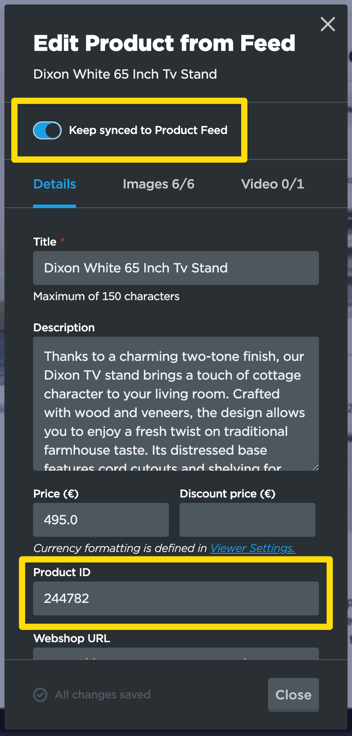
Each product is kept in sync with the product feed through its unique product ID. So, every time the feed is imported, the system will look up the used product IDs in the updated feed and make sure details like the prices are kept up to date.
Before you start:
-
Decide on an update cadence (Hourly/daily or manual)
-
Ensure your source URL is reachable and updated on schedule
Step-by-step guide
- Set schedule for your Product feed
- Run and verify
- Trigger a manual refresh to start
- Open a recent publicition and do a spot-check:
- Product overlays/hotspots: titles, prices, images, and availability reflect the latest feed.
- Click-through URLs open the correct product page.
- Deactivated IDs no longer appear as selectable productsOpen a recent publication and do spot-checks
What syncs when your feed updates
-
New products: added and available for selection in publications and hotspots
-
Updated fields: title, price, availability, image URL, and other mapped attributes update where products are used
-
Removed products: deactivated and hidden from selection; existing hotspots show as unavailable until replaced
-
Media and links: image URL and product URL changes propagate on refresh
Troubleshooting
Below, you can find some more information that can help you make necessary changes or troubleshoot issues with the product details:
- If a product ID cannot be found in the feed, the details will remain unchanged.
- If a product image has been updated, but it does not show in the hotspot, make sure that the image URL in the feed is also updated (different from the URL used before).
- If multiple products share the same product ID, only one of them gets imported into Publitas.
- If the price is zero, the price will not be displayed in the hotspot.
- To update the details manually, you need to disable the sync with the feed for that product. This is to avoid the sync will undo these changes.
- Changes to products in the feed are reflected in Publitas once the feed is synced, which can be done manually, daily or even hourly, depending on your product feed settings. See more in Setting up your product feed.
FAQ & next steps
-
How fast do changes appear? On the next scheduled refresh or after a manual run
-
Can I pause syncing? Yes - disable the schedule; re-enable anytime.
-
Improve data quality: see Supported Feed Attributes and GTINs in Publitas.