
Available in Enterprise
If you're interested in using this feature and you're on the Enterprise plan, please reach out to your Success manager, who will activate this for you.
---
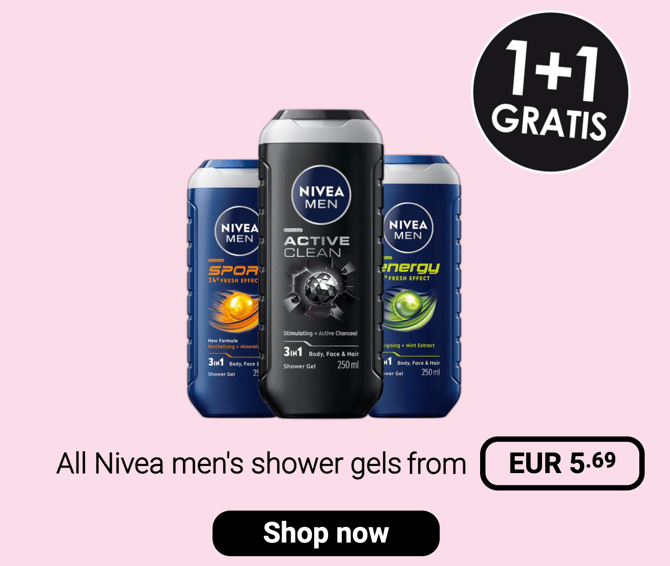
Create multi-product deals like "1+1 free" or "3 for €5" directly in Publitas, using data straight from your product feed. Group Promotion hotspots let you compose an entire group deal of product images, titles, prices, and promotional badges — without designing it in an external tool, so your dynamic publications can cover your full leaflet, group deals included.
A Group Promotion hotspot combines 2 to 6 products from your product feed into a single promotion visual (even though your promotion may include more). Each element inside the hotspot pulls its content from the feed, so prices and product details stay up to date automatically.
How to create a Group Promotion hotspot
- Open the hotspot editor and select the Group Promotion option from the toolbar, or press X for keyboard shortcut
- Draw the hotspot on the page
- Select at least 2 and up to 6 products from your product feed in the product selection modal and confirm, or use rules to generate the selection
- The hotspot is created with a default layout: up to three product images, a title, a description, and a price
- Select any element on the canvas or in the configuration panel to edit it
NOTE: If you close the product selection without choosing products, the hotspot is marked as invalid (shown in red) and it will not be made visible in the Reader until sufficient number of products are assigned.
Composing the promotion layout
You can add or remove elements to match the layout of your promotion. Each element can be linked to a specific product from your selection, so a title shows that product's title, an image shows its image, and so on. Elements can be repositioned and resized freely within the hotspot, and the hotspot boundaries adjust automatically to contain all elements.
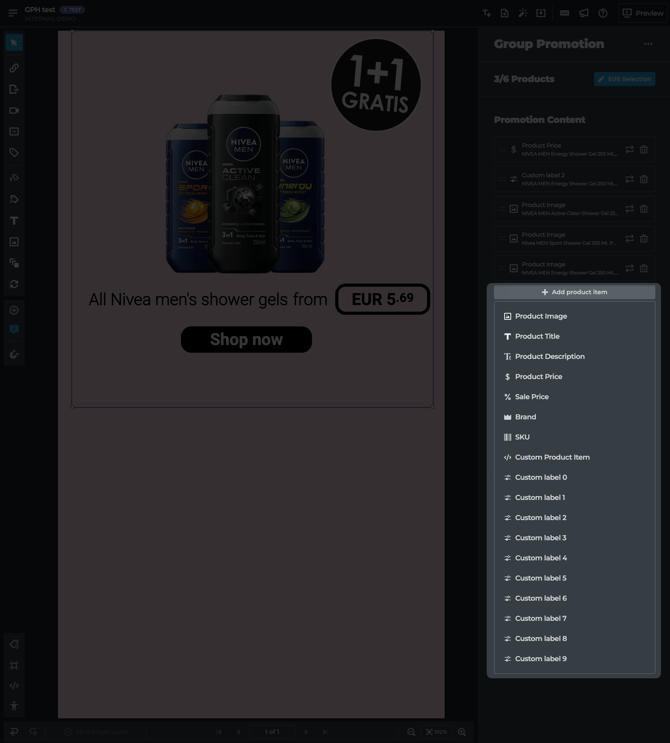
The available element types are:
- Product Image - shows one of the product images or an image stored in one of the twenty custom label fields, for example a promotional badge or brand logo. Standard image editing options apply, including remove background.
- Text elements - shows product text such as the title or description, SKU, brand, or custom label values like promotional copy. Standard text editing options apply.
- Price elements - shows the product price or sale price with dedicated formatting options: zero-decimal display, comma or dot separators, and decimal placement (inline, top, or bottom).
- Custom product item - combines custom HTML and CSS with product feed variables for fully bespoke designs, the same approach used in dynamic product hotspot themes. This option is intended for advanced use cases and typically involves your development team or Publitas Services team engagement to create custom themes.
Each element is linked to one of the selected products and it pulls the product data directly from the product feed.
Resizing the Group Promotion hotspot
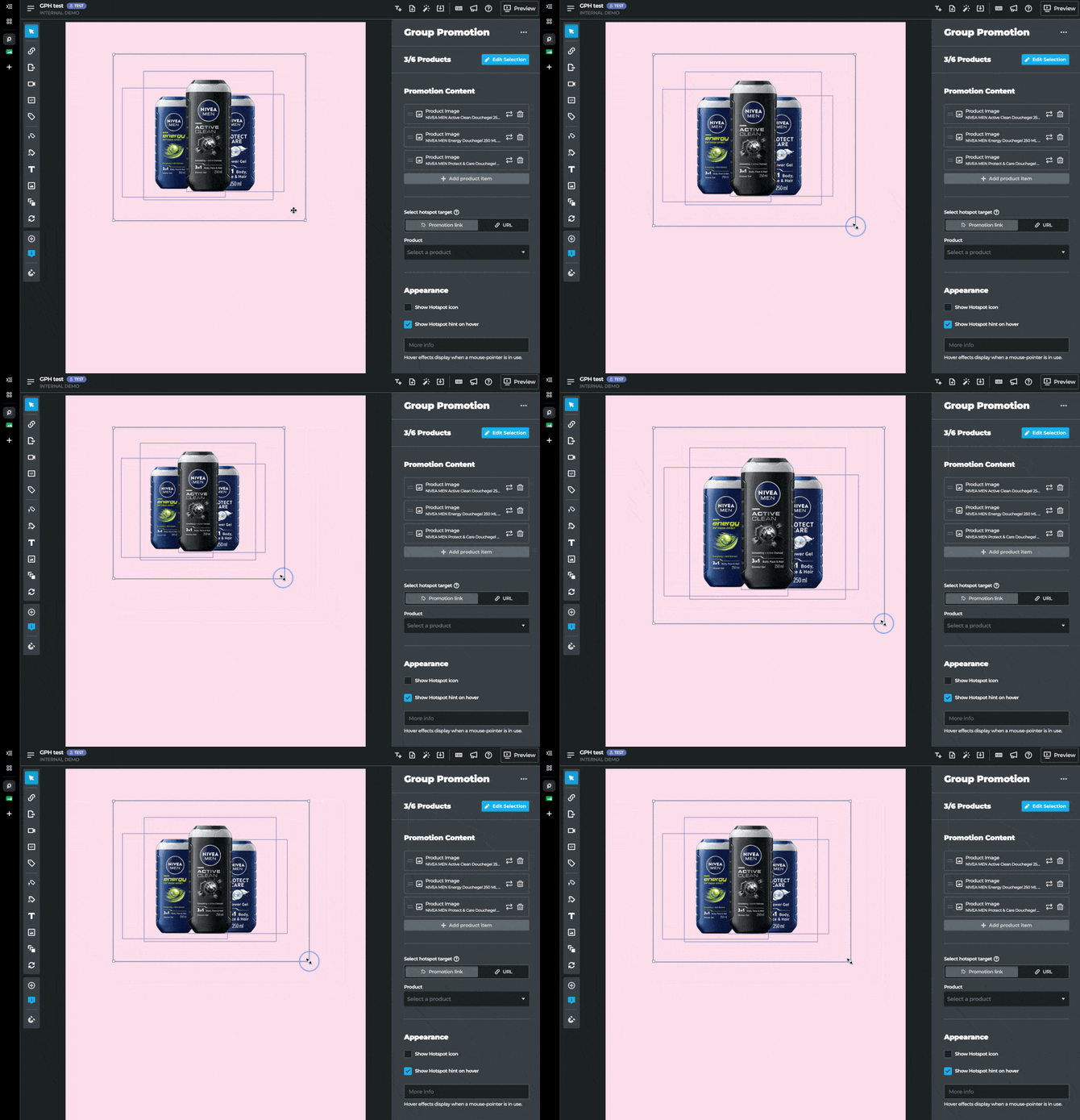
Clicking once on the Group Promotion hotspot selects the hotspot and all of its child elements, from where resizing by dragging hotspot handles scales all of the child elements along with the hotspot.
Clicking the empty area of Group Promotion hotspot for the second time selects just the hotspot boundaries and allows resizing the boundaries without scaling the child elements - this is particularly useful to determine the whole clickable area of the Group Promotion hotspot, without affecting its design.
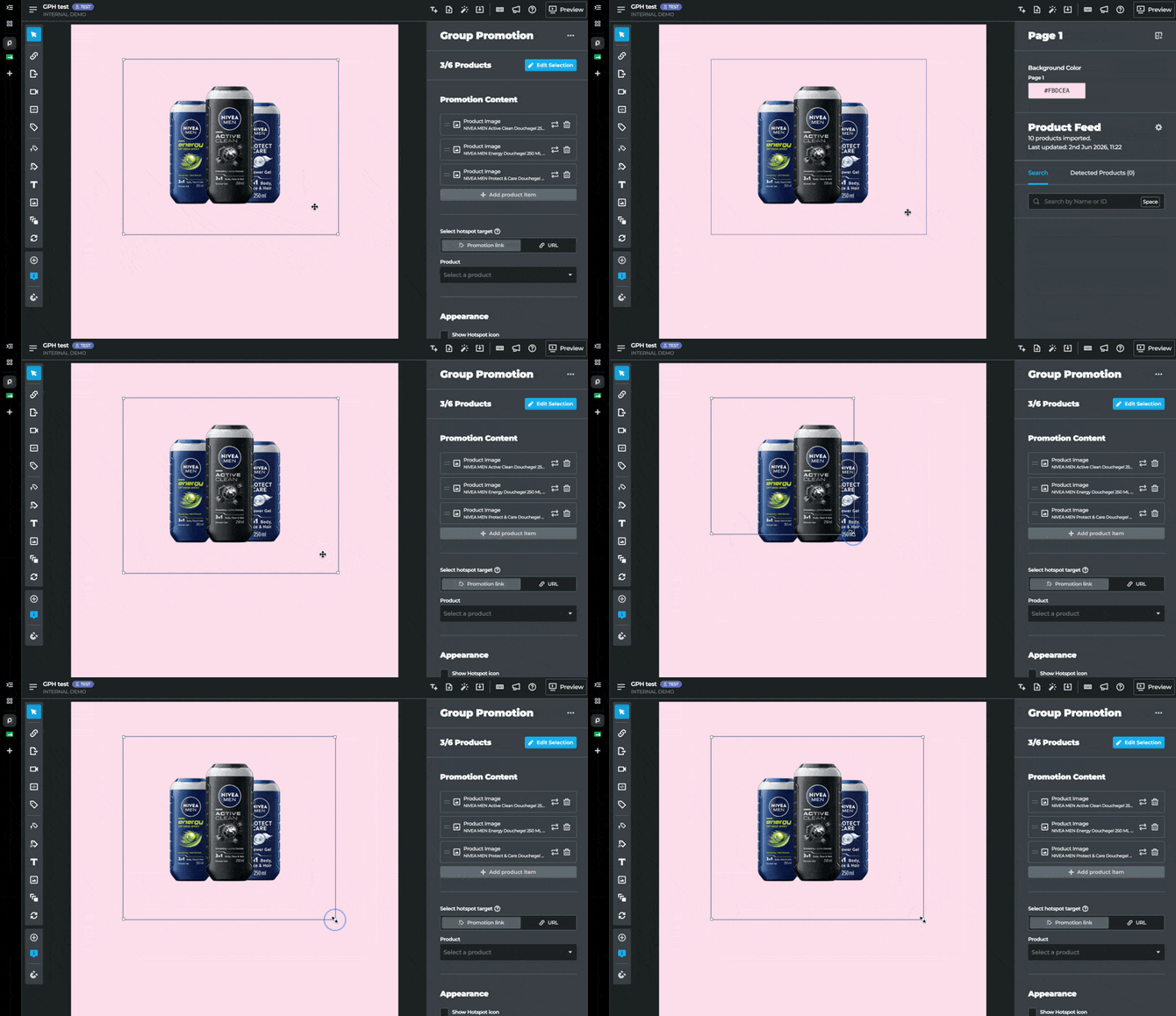
Finally, clicking one of the child elements of the hotspot focuses just that element and allows resizing or configuring it, without impact to the whole Group Promotion hotspot.
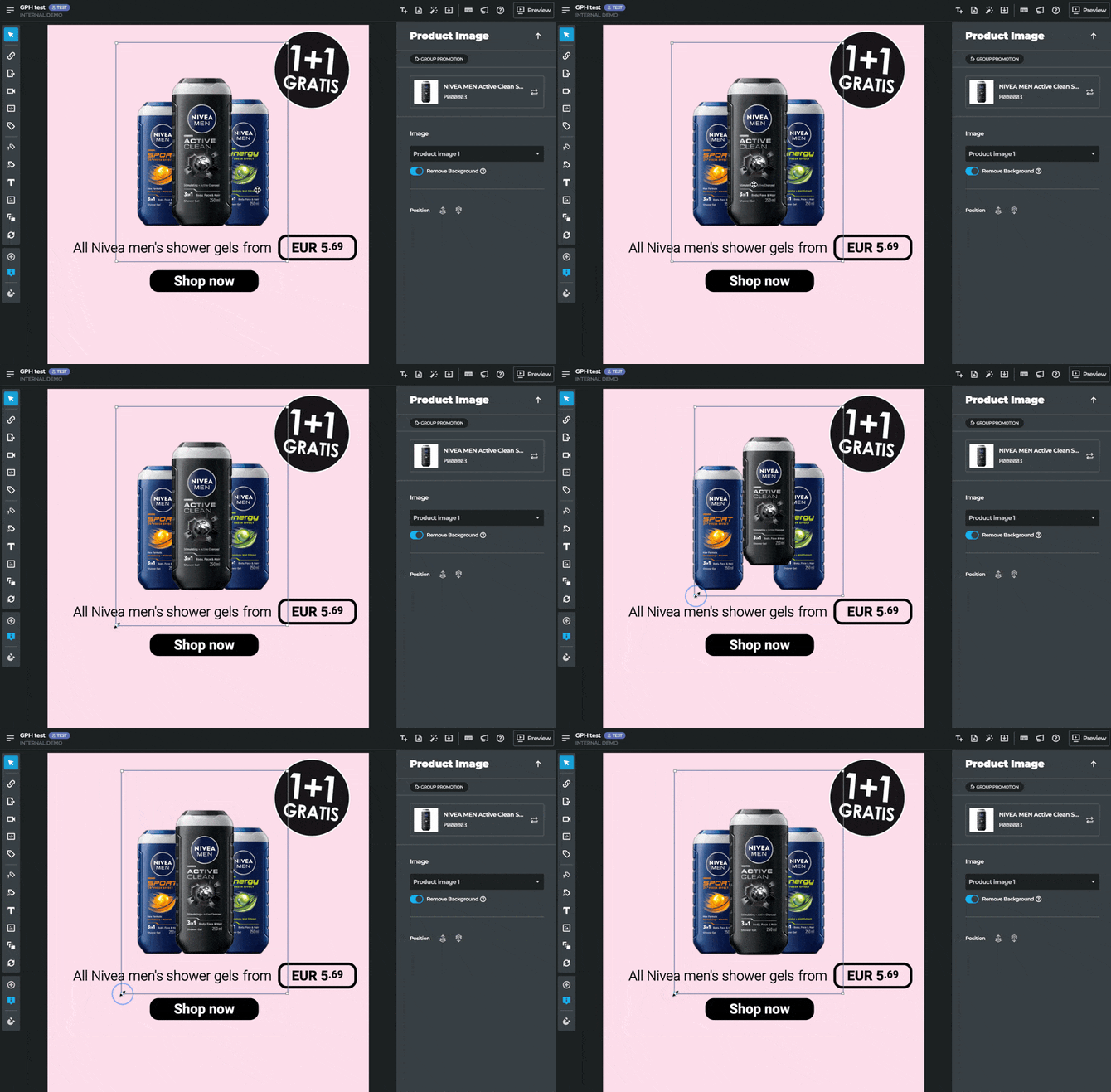
Setting the promotion URL
The promotion URL determines where visitors land when they click the promotion in the publication, for example a promotion landing page or a filtered product listing page. Select the Group Promotion Hotspot, and then you can select the product URL or any of the twenty custom label fields from the feed as the source, or enter a URL manually.
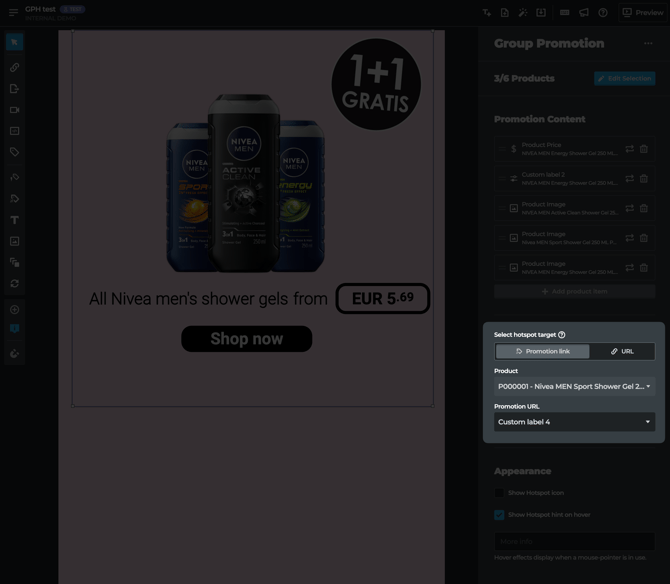
Selecting products automatically with rules
Instead of selecting products manually, you can define rules that select products from your feed automatically, the same way Generated Product hotspots work. Set rules using feed attributes, for example a promotion ID stored in a custom label, and the hotspot selects up to 6 matching products. When the feed changes, the selection updates with it.
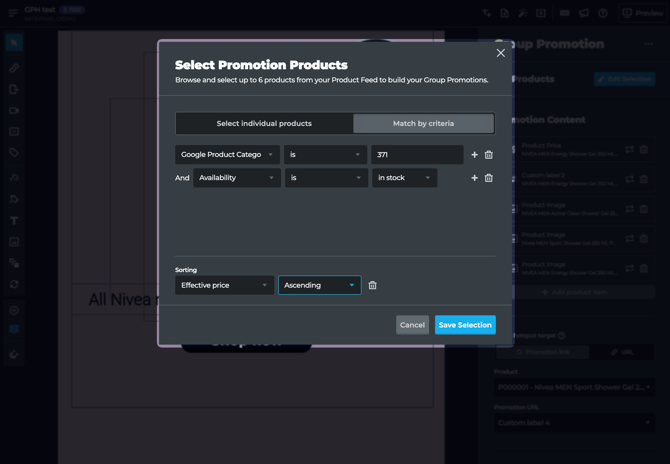
Saving and reusing templates
Once you have composed a promotion layout, you can save the Group Promotion hotspot as a template. Applying a template recreates the full layout, including element positions, styling, feed connections, and selection rules. You only need to update the product selection either by manually selecting the products or for example by changing the promotion ID in the rules — and all elements populate automatically. This reduces creating a new group promotion to a matter of seconds.
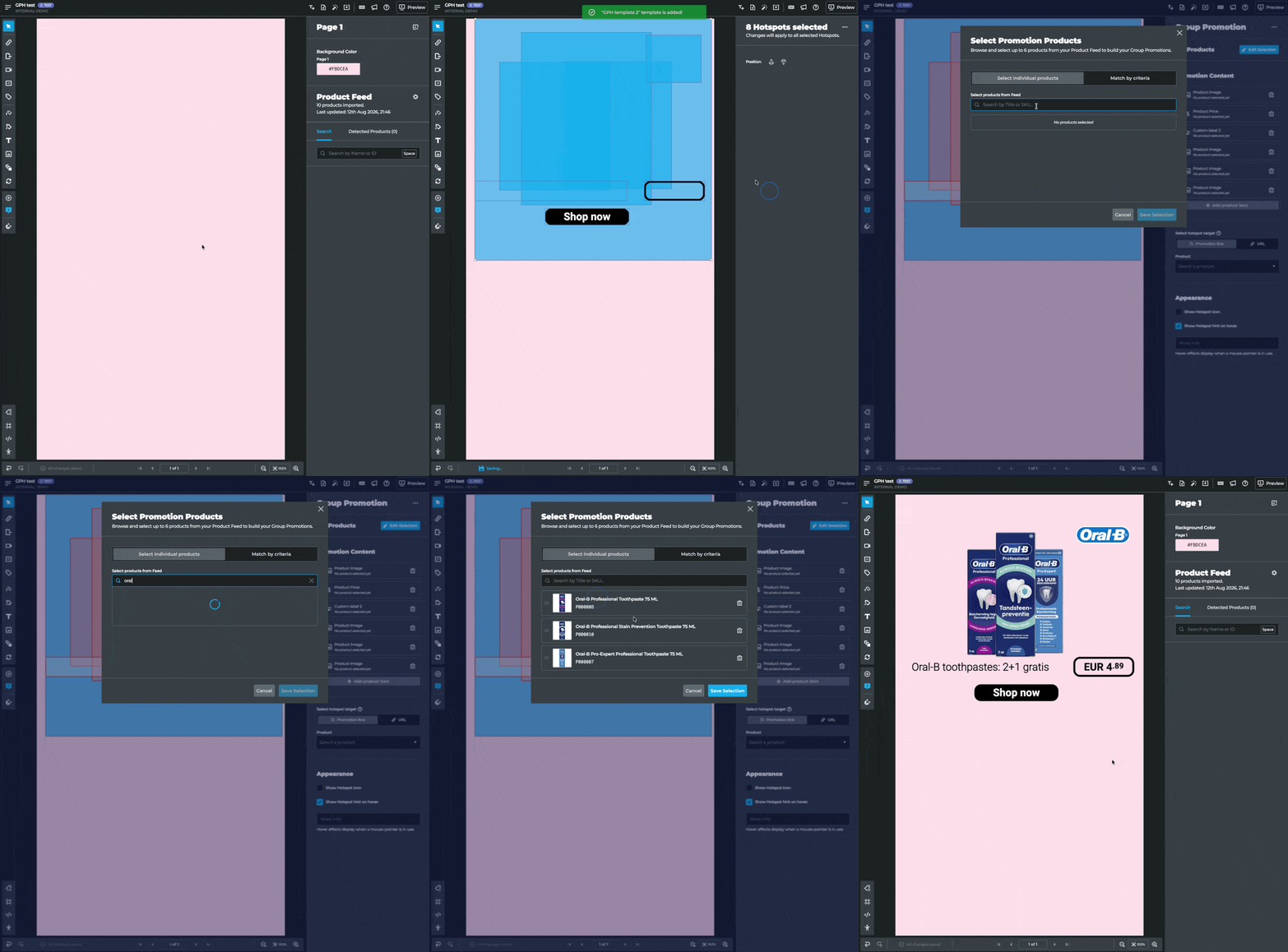
Appearance settings
As with other hotspot types, you can choose whether to show the hotspot icon and the hotspot hint on hover. If your account uses a brand kit, text inside Group Promotion hotspots follows the product font, the same as dynamic product hotspots.