
Available in Enterprise
EARLY ACCESS: If you're interested in using this feature and you're on the Enterprise plan, reach out to your Success Manager who can activate this for you.
Let visitors view product pages from your own website inside a pop-up, directly within the content, so they can add to cart without ever leaving the publication.
The integration reuses the product detail pages and the add-to-cart flow you already have, so there is no need to rebuild your shopping experience inside Publitas. You turn it on in your Publitas settings, copy two or three scripts into your website, and you are set.
In this article:
- How it works
- Before you start
- Step 1. Embed your content on your website
- Step 2. Enable the E-commerce integration
- Step 3. Add the product page script to your product detail pages
- Step 4. Add the cart sync script to your embed page
- Step 5. Add conversion tracking
- Settings reference
- What changes in the publication
- Troubleshooting
- Is your website on Shopify?
- Already using the iframe setup?
How it works
- A visitor clicks a product hotspot in the embedded publication.
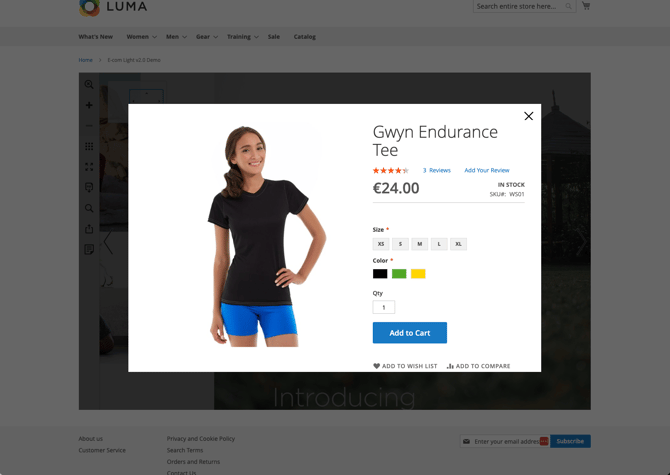
- Publitas opens your product detail page (PDP) in a pop-up on top of the content, using the Webshop URL on the hotspot.
- The PDP is loaded with an extra URL parameter (?mode=ecom by default). The product page script detects it and adds a publitas-ecom class to the page, so your own CSS can hide the header, navigation, footer, and anything else that does not belong in a pop-up.
- The visitor adds the product to the cart using your normal add-to-cart button.
- When the pop-up closes, the cart sync script refreshes the cart count shown inside the publication.
- If conversion tracking is installed, the eventual purchase is attributed back to the publication in your Publitas dashboard.
.png?width=670&height=440&name=image%20(1).png)
Before you start
The integration only works when all of the following are true. If any of them is missing, product hotspots open in the standard Publitas product view instead of your product page.
On the Publitas side
- The integration is activated for your account. The integration is in early access, so your Success Manager has to switch it on first. Until then, the E-commerce tab does not appear in your Group settings.
- Your product hotspots have a Webshop URL. The pop-up loads that URL. Products without one open in the standard Publitas product view. The Webshop URL comes from the product feed, or can be added manually per hotspot.
- No custom E-commerce code is active on your content. If the Publitas team set up the older custom integration for you, ask your Success Manager to remove that code before you switch to this setup. While the old code is present, it takes priority and the new pop-up never opens.
On your website
- The content is embedded with the recommended embed code. Use the embed code from Share content > Embed, not an HTML iframe and not a link to the publication. The pop-up is drawn by that embed code on your page. With an iframe or a direct link, the integration cannot open.
- Your Webshop URLs use https and point to the same website as the embed. Subdomains of the same domain are fine: content embedded on, for example, www.yourshop.com can open product pages on yourshop.com or shop.yourshop.com, but not on a different domain.
- Your product pages can be shown in a frame on your own site. If your site sends an X-Frame-Options header or a Content Security Policy with frame-ancestors, they must allow your own domain. Note that X-Frame-Options: SAMEORIGIN treats www.yourshop.com and yourshop.com as different sites, so use frame-ancestors with both if you serve both.
- Your website allows resources from *.publitas.com. If you run a strict Content Security Policy, allow scripts from view.publitas.com so the product page script, cart sync, and tracker can load.
Step 1. Embed your content on your website
Open the publication, go to Share content > Embed, and copy the recommended embed code. Paste it on a page of the website your Webshop URLs point to. When the integration is active, the Embed dialog shows E-commerce integration enabled. Any of the methods in Embedding a publication on your website will work.
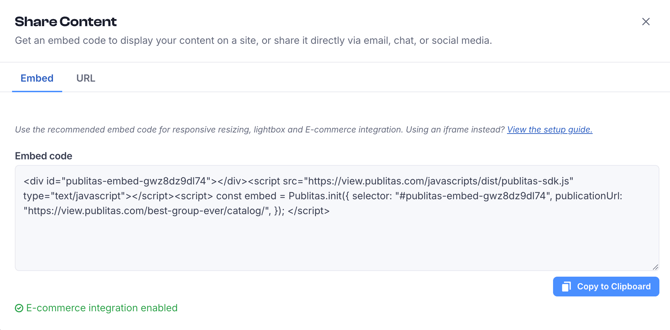
This step is not optional. If the content is opened on its own Publitas URL instead of embedded on your site, the product pop-up has nothing to open your PDPs into.
Two ways of sharing do not work with this integration at the moment:
- HTML iframe embed. An iframe cannot draw outside its own box, so the product pop-up cannot open over your page.
- The publication's own Publitas link (view.publitas.com/...). There is no page of yours around the content to open your product pages in.
In both cases, visitors can still browse the content, and products open in the standard Publitas product view.
Step 2. Enable the E-commerce integration
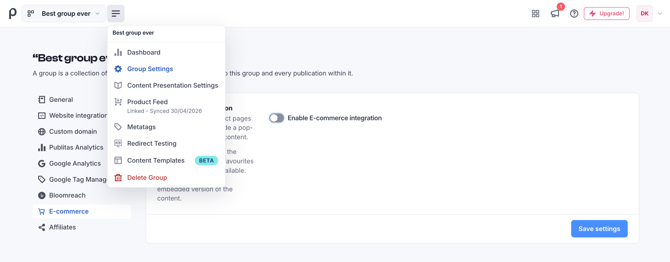
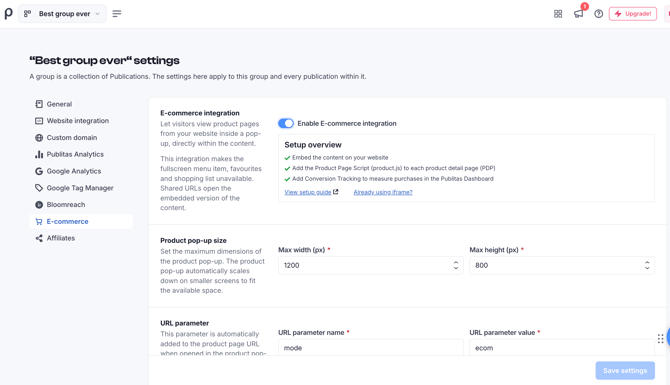
- Open your Group settings and select E-commerce in the left menu.
- Turn on Enable E-commerce integration.
- Select Save settings.
Settings applied at group level apply to that group and every publication within it.
Step 3. Add the product page script to your product detail pages
This script opens your product pages in the pop-up and remembers that the visitor came from your content, so conversion tracking in Step 5 can link purchases back to it. While the page is open in the pop-up, it also marks the page with a publitas-ecom class, so you can hide your header, navigation, and footer with your own CSS.
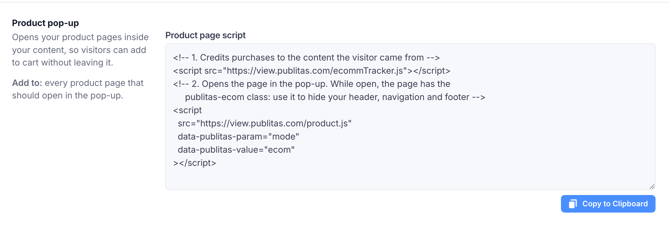
Copy the Product page script from the E-commerce settings panel and add it to the <head> of every product detail page you want to show in the pop-up. This is usually the template your product pages share.
<!-- 1. Credits purchases to the content the visitor came from -->
<script src="https://view.publitas.com/ecommTracker.js"></script>
<!-- 2. Opens the page in the pop-up. While open, the page has the
publitas-ecom class: use it to hide your header, navigation and footer -->
<script
src="https://view.publitas.com/product.js"
data-publitas-param="mode"
data-publitas-value="ecom"
></script>
The script settings match the URL parameter you set in the settings panel, so always copy the snippet from the app rather than from this article.
Then hide the parts of the page you do not want in the pop-up. For example:
.publitas-ecom header,
.publitas-ecom nav,
.publitas-ecom footer {
display: none;
}
The script is passive. It does nothing until a visitor opens the page from a publication, so there is no measurable impact on the performance of your product pages.
Good to know
- Use the script exactly as you copied it. It loads from Publitas, so don’t host the files on your own server, change their order, or add async or defer.
- The tracker line (ecommTracker.js) only needs to be on a page once. If you add it to every page of your website, leave it out of the conversion tracking script in Step 5.
- If your website only loads analytics scripts after the visitor accepts cookies, treat the tracker line the same way.
How to check it works, open the page with your content and tap a product. Its product page should open in the pop-up and, if you added the CSS, without your header and footer.
Step 4. Add the cart sync script to your embed page
When a visitor adds a product to the cart in the pop-up, the cart on your website doesn’t know about it yet. The cart sync script tells your website to refresh its cart, for example, the mini cart in your header, as soon as the pop-up closes. If your content shows its own cart icon, the script can keep that icon up to date too.
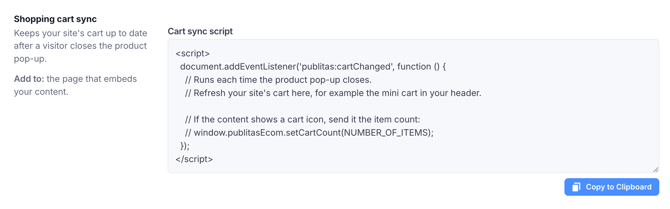
Copy the Cart sync script from the E-commerce settings panel and add it to the page that embeds your content. You don’t need it on your product pages or your checkout.
<script>
document.addEventListener('publitas:cartChanged', function () {
// Runs each time the product pop-up closes.
// Refresh your site's cart here, for example the mini cart in your header.
// If the content shows a cart icon, send it the item count:
// window.publitasEcom.setCartCount(NUMBER_OF_ITEMS);
});
</script>
The script needs a small change from your developer before it works:
- Where the script says Refresh your site’s cart here, add the code your website already uses to update its cart after an add-to-cart.
- Optional: if your content shows its own cart icon, remove the // in front of window.publitasEcom.setCartCount and replace NUMBER_OF_ITEMS with the number of items in the visitor’s cart.
Leave the rest of the script as it is.
For example, on Magento 2 this refreshes the mini cart in the header and updates the cart icon in the content:
document.addEventListener('publitas:cartChanged', function () {
require(['Magento_Customer/js/customer-data'], function (customerData) {
customerData.reload(['cart'], true).done(function (data) {
var count = (data.cart && data.cart.summary_count) || 0;
window.publitasEcom.setCartCount(count);
});
});
});
On Magento, keep the true in reload(['cart'], true). The product was added inside the pop-up, so the page has to reload the cart to see it. Other platforms work the same way: call the function your site already uses to update its cart.
Publitas fires the publitas:cartChanged event after the visitor closes the product pop-up. Your job is to read the current number of items from your own platform and pass it to window.publitasEcom.setCartCount().
Good to know
- The script runs every time the pop-up closes, even if nothing was added, so your refresh code should be safe to run often.
- The cart icon only appears in your content when a webshop checkout URL is set in the reader settings. Without one, you can skip the setCartCount line.
- The cart icon shows counts of 10 or more as “9+”.
How to check it works, open the page with your content, add a product to the cart in the pop-up, and close the pop-up. Your website’s cart should show the new item. If you use setCartCount, the cart icon in the content should show the new count too.
Step 5. Add conversion tracking
This step is optional, but we strongly recommend it. Conversion tracking measures purchases made by visitors who came from your content, so you can see the revenue your content generates in the Publitas dashboard.
Before you start, make sure the product page script from Step 3 is on your product pages. It records that the visitor came from your content. Without it, purchases can’t be linked to your content.
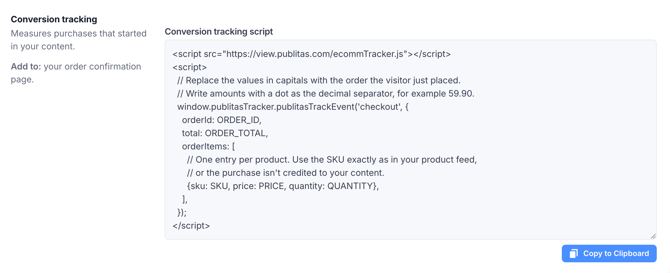
Copy the Conversion tracking script from the E-commerce settings panel. Add it only to your order confirmation page, which is the “thank you” page shown after a successful purchase. Don’t add it to the cart or the checkout steps.
<script src="https://view.publitas.com/ecommTracker.js"></script>
<script>
// Replace the values in capitals with the order the visitor just placed.
// Write amounts with a dot as the decimal separator, for example 59.90.
window.publitasTracker.publitasTrackEvent('checkout', {
orderId: ORDER_ID,
total: ORDER_TOTAL,
orderItems: [
// One entry per product. Use the SKU exactly as in your product feed,
// or the purchase isn't credited to your content.
{sku: SKU, price: PRICE, quantity: QUANTITY},
],
});
</script>
Your shop fills in the values in capitals from the order the visitor just placed. This usually happens in the template of your order confirmation page.
- ORDER_ID: your order number, for example '100123'.
- ORDER_TOTAL: the total amount paid, including tax and shipping, for example 64.85.
- SKU: the product’s SKU, the same as in your product feed, for example 'WT04-L-Red'.
- PRICE: the price of one unit, not the line total, for example 19.95.
- QUANTITY: how many units were ordered, for example 2.
Add one {sku, price, quantity} entry for each product in the order. For example, an order with two products plus 4.95 shipping looks like this:
<script src="https://view.publitas.com/ecommTracker.js"></script>
<script>
window.publitasTracker.publitasTrackEvent('checkout', {
orderId: '100123',
total: 64.85,
orderItems: [
{sku: 'WT04-L-Red', price: 19.95, quantity: 2},
{sku: 'MT09-M-Blue', price: 20.00, quantity: 1},
],
});
</script>
How revenue is counted
The revenue in the Publitas dashboard is the sum of the products in the order that also appear in your content. It is calculated from each product’s price and quantity, not from the order total. Products whose SKU doesn’t match your product feed are not counted.
Good to know
- Use the same SKUs as your product feed. If your orders contain variant SKUs, for example by size or color, your product feed needs those variants too.
- Write amounts as numbers with a dot as the decimal separator: 59.90, not 59,90.
- Run the script only once per order. For example, it shouldn’t run again when the visitor reloads the confirmation page.
- Use the same website address for your product pages and your order confirmation page, for example both on www.yourshop.com. If your checkout runs on a separate address such as checkout.yourshop.com, purchases can’t be linked to your content.
How to check it works, open your content, tap a product so its page opens in the pop-up, add it to the cart, and place a test order. The order should then appear in the Publitas dashboard.
Letting visitors opt out
Trigger the following alongside your existing consent logic when a visitor opts out:
<script>
document.addEventListener('publitasTrackerReady', function () {
window.publitasTracker.publitasTrackingOptOut();
});
</script>
Settings reference
Product pop-up size
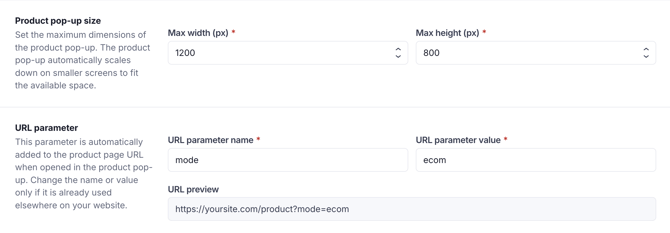
Set the maximum dimensions of the pop-up in Max width (px) and Max height (px). Defaults are 1200 × 800. The pop-up scales down automatically on smaller screens to fit the space available, so these are ceilings rather than fixed sizes.
URL parameter
This parameter is added to the product page URL automatically when the page opens in the pop-up. The default is mode=ecom, giving a URL like:
https://yoursite.com/product?mode=ecom
Change the URL parameter name or URL parameter value only if mode is already used for something else on your website. If you change it, copy the product page script again, because the snippet is regenerated to match.
What changes in the publication
Turning the integration on changes a few things in the reader:
- The fullscreen menu item becomes unavailable.
- Favourites and the shopping list become unavailable.
- Shared URLs open the embedded version of the content, so shoppers who follow a shared link land on your website with the integration active rather than on a standalone publication URL.
Troubleshooting
The pop-up opens but the page is blank. Your website is refusing to be framed. Check X-Frame-Options and the frame-ancestors directive in your Content Security Policy.
The pop-up opens the full site, header and all. The product page script is not on that PDP, or your CSS is not keyed to the publitas-ecom class. Open the PDP directly with ?mode=ecom appended and inspect the <body> element for the class.
The cart count in the publication never updates. The cart sync script is missing from the embed page, or your cart endpoint returns a different field than item_count.
No revenue shows in the dashboard. Check that the conversion tracking script is on the order confirmation page, that placeholder values are replaced with real ones, and that SKUs match the ones used in the publication.
Is your website on Shopify?
At the moment, this integration does not support Shopify. If you need to combine it with the Shopify platform, contact your Success Manager, who will help you plan custom development with our Services team.
Already using the iframe setup?
Customers who were set up on the earlier custom iframe integration should follow E-commerce integration (iframe) instead. That setup relied on custom code injected by the Publitas team at account, group, collection, or publication level, rather than the settings panel described here.
Related articles: Embedding a publication on your website · Embed code versus HTML iframe · Shopping integration · Publitas integrations overview