
Available in Silver, Gold & Enterprise
Add both images to the pages of your online publication using any of the supported formats: JPG, PNG, and GIF. The latter two also support transparency, which can blend the image into the existing content.
How it works:
- Open the editor via Add Hotspots
- Select the Add an Image tool
- Draw the area where the image needs to be fitted into
- Submit the Image URL or upload the image to Publitas
- Select whether the image has to appear on click (hotspot), show on the page (embed), or both (Interactive embed)
Creating an image hotspot: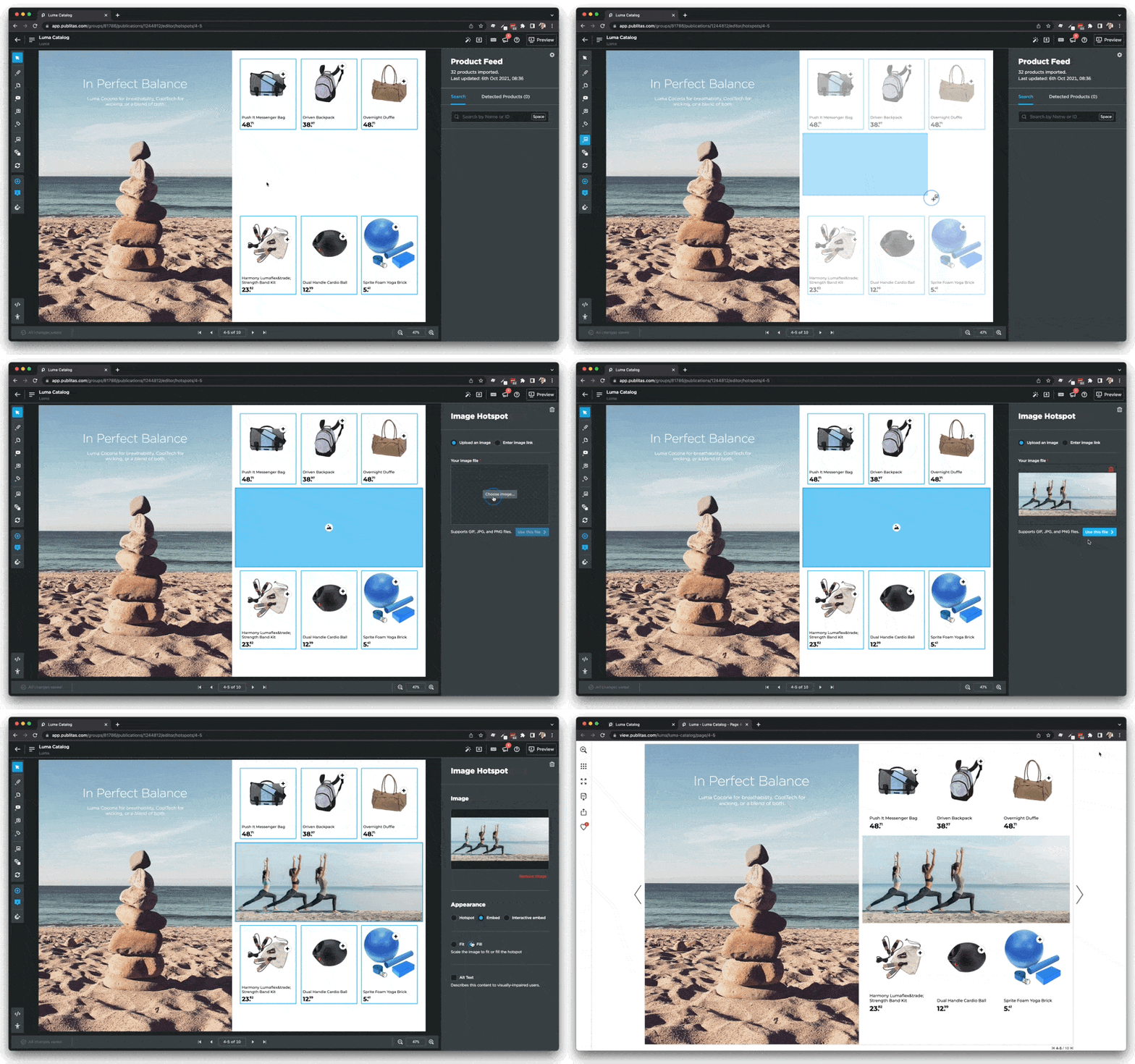
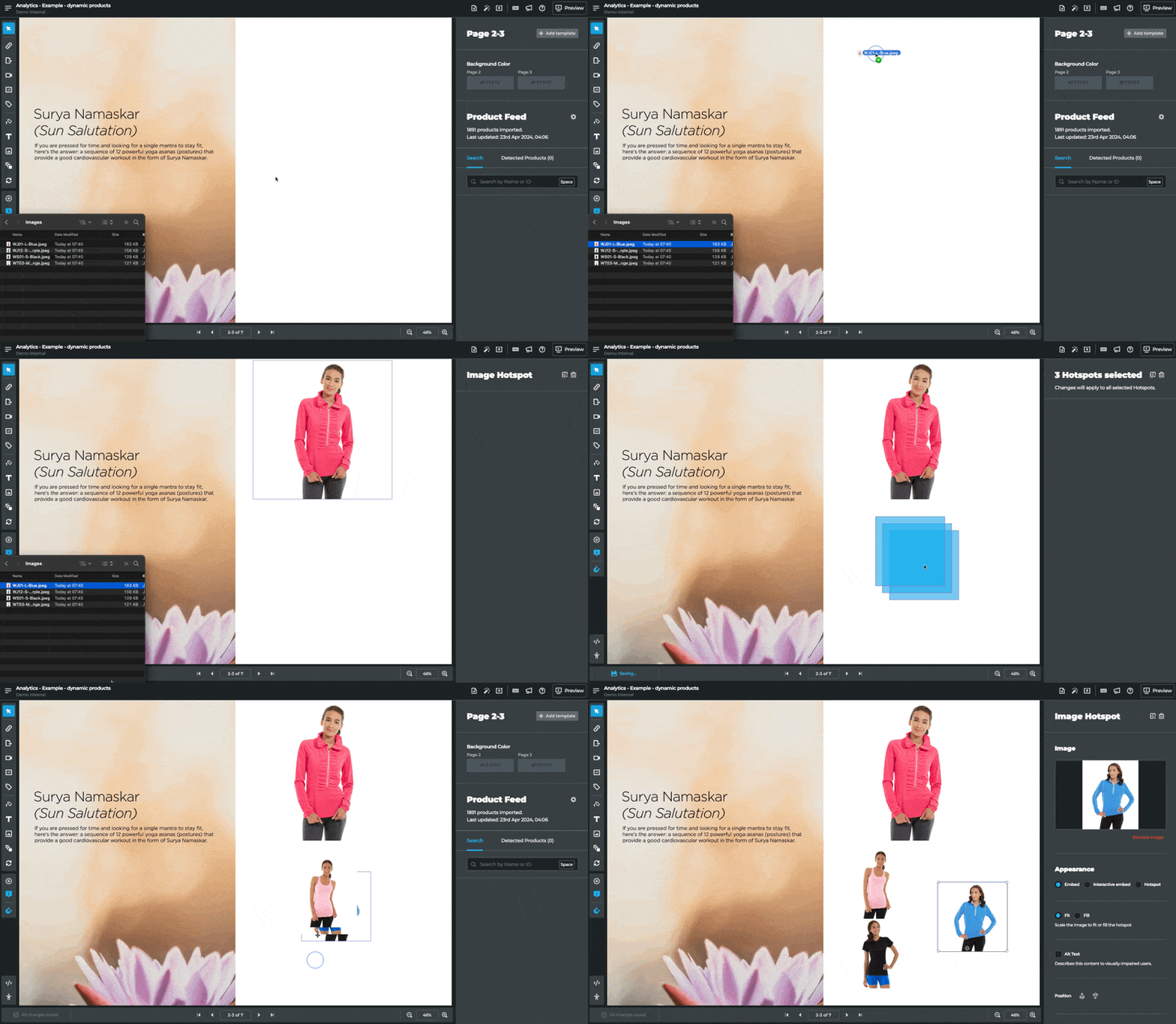
An alternative option is to drag and drop one or more images onto a page in Publitas Editor, and hotspots will be created automatically.
Tips:
- You can also add an Alt Text to describe the content to visually impaired users.
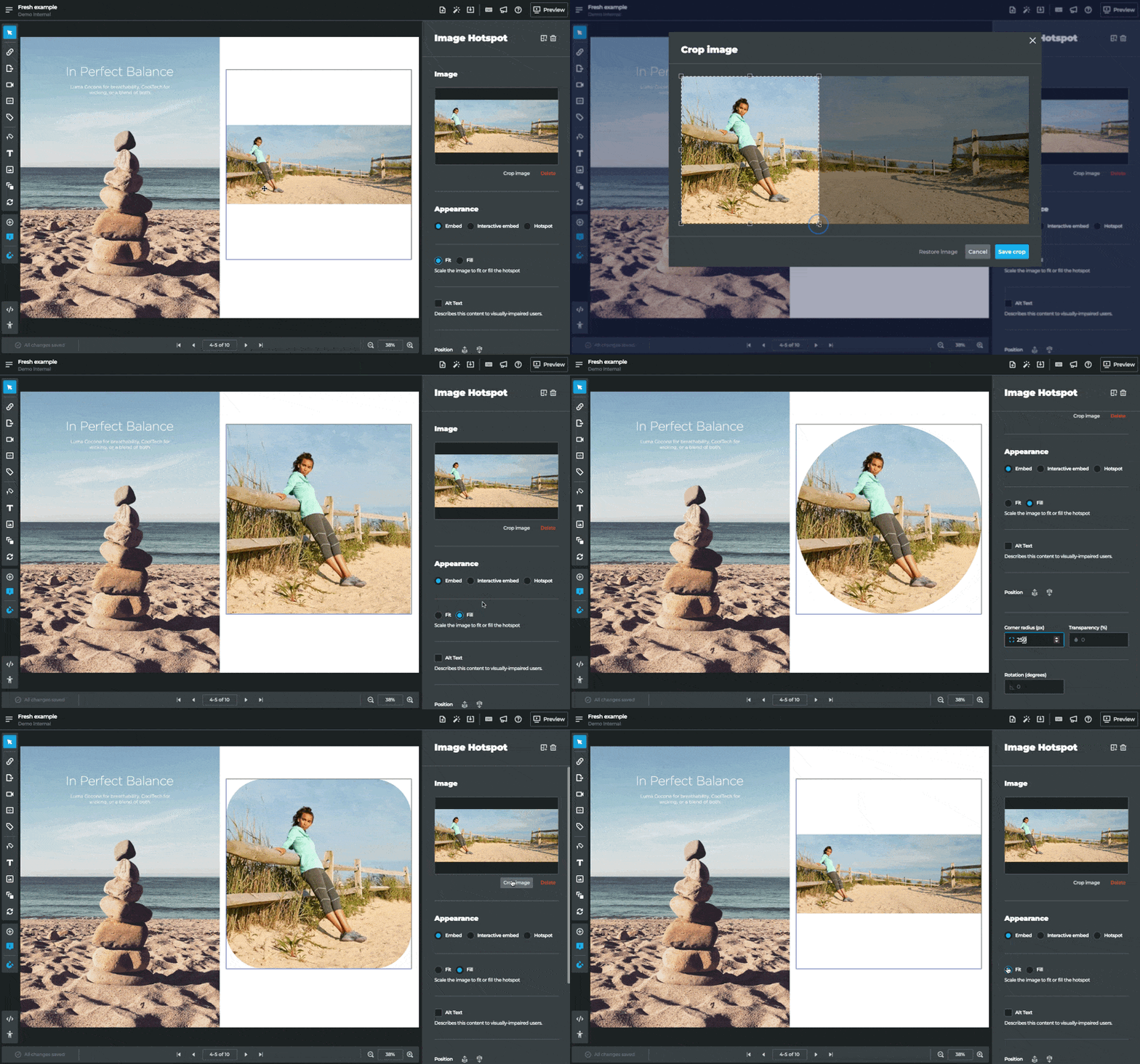
- Use the Fill option for embedded images to have your images fill the dedicated area from edge to edge.
- To ensure your content loads instantly and reduce the weight of the content for mobile traffic, Publitas will optimize image content automatically for the best experience. this does not apply to animated GIF files. It's recommended to upload animated GIF files as animated content in Video hotspots: Add animated content to drive engagement
- Use images that are at least as large as the area where they will appear. Avoid stretching small images in your editor, as enlarging a 500 × 500 px image to fit a much larger area will reduce sharpness.
• Aim for 1000–1600 px on the longest side for most hotspot images. This range provides good visual clarity on most screens while keeping file sizes manageable.
• Export images in web-optimized formats (JPG or PNG). Optimized images help maintain quality while keeping file sizes smaller, which improves loading performance in the Publitas reader. More details here.