
Available in Gold and Enterprise
Meet local pricing rules, such as the Dutch ACM guidance on recommended prices, without custom code and solutions. You can now remove the strikethrough from the original price in the product details overlay and add your own label in front of it, for example "Adviesprijs".
How to set up the recommended price display
- Open the group options and select Content Presentation Settings
- Go to the Hotspot Settings tab
- In the Price display under Product Hotspots section, enable Remove strikethrough from original price toggle
- Optionally, type the label you want to show in front of the original price, for example "Adviesprijs", "Normaal", "MSRP", "Recommended retail price" or similar
- Save your changes
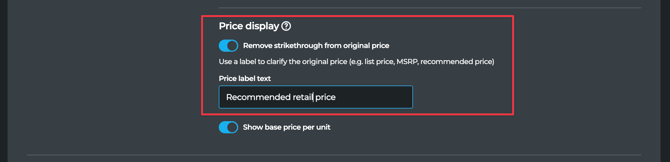
The settings apply to all publications in the group.
How the price appears to readers
By default, when a product has both an original price and a lower sale price, the original price is crossed out and the sale price is shown next to it. This behavior is unchanged if you leave the setting off.
When you turn the setting on, the original price is shown without the strikethrough. If you also fill in a label, that text appears as a prefix in front of the original price. The label and the strikethrough setting apply to the product details overlay on desktop, tablet, and mobile.
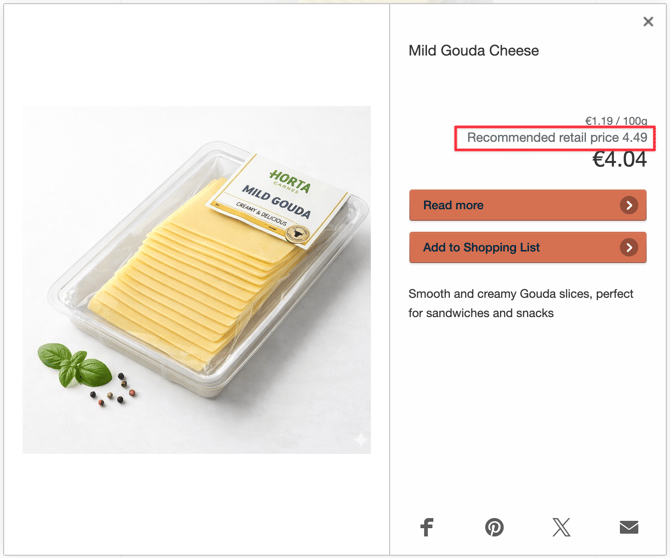
When the label is shown
The label only appears when the product is actually being sold below the recommended price. Both of the following need to be true:
- A sale price exists and is greater than zero
- The sale price is lower than the original price
If the two prices are equal, if there is no sale price, or if the sale price is higher than the original price, the label is hidden so that no text is left standing without a price next to it. The price values themselves are not affected by this rule and continue to display as described in How and when prices are displayed.
What this does not change
These settings only affect the product details overlay, which is the pop-up that opens when a reader clicks a Product hotspot. Prices rendered directly on the page by Dynamic product hotspots are controlled by your product theme instead. You can adjust the strikethrough and other price styling there using the Product theme editor.
Related articles: How and when prices are displayed, Using the Product theme options in Dynamic product hotspots, Displaying stock information for Product hotspots